Image Tools
How to Convert HEIC Photos to JPG on iPhone, Windows and Mac
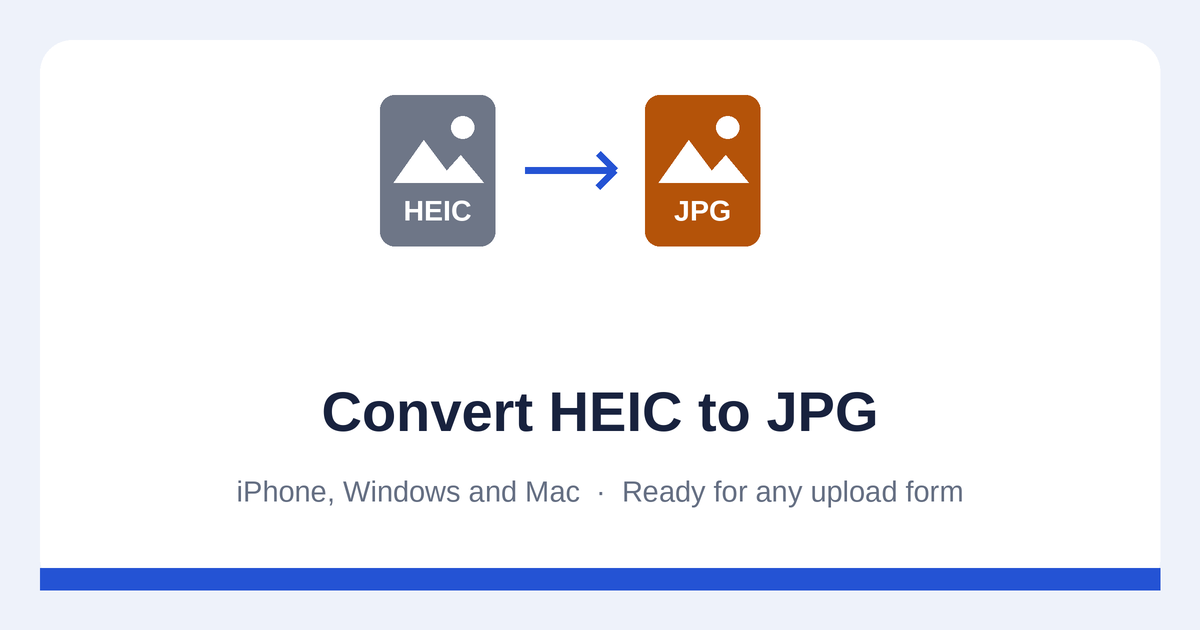
You take a photo of your driver's license with your iPhone, go to upload it, and the form says "Accepted formats: JPG, PNG". Your photo is called IMG_4821.HEIC. Or you copy your holiday photos to a Windows laptop and half of them won't open.
Nothing is wrong with your photos. Your iPhone simply saves them in a newer format called HEIC, and plenty of websites and computers still don't understand it. The fix takes a minute, and you can also stop it happening again.
What is a HEIC file?
HEIC (also called HEIF, the name of the underlying standard) is the photo format Apple has used by default since 2017. It stores the same picture in a noticeably smaller file than a JPG, which saves a lot of space on your phone.
The catch is compatibility. JPG works everywhere: every website, every computer, every printer kiosk. HEIC doesn't. Many upload forms reject it, older Windows PCs can't open it without an extra extension, and some online tools, including our own Image Resizer, only accept JPG, PNG and WEBP.
So for anything you need to upload, email or print, JPG is the safe choice.
The quickest way: convert HEIC to JPG online
If you just need a JPG right now, use our free HEIC to JPG converter. It works the same on an iPhone, a Windows PC, a Mac or an Android phone:
- Open HEIC to JPG and choose your HEIC photo. On an iPhone, you can pick it straight from your photo library.
- Click Convert to JPG.
- Download the JPG. It comes out the right way up, and the location stored in the photo is removed.
The rest of this guide shows how to convert without uploading anything, and how to stop your iPhone creating HEIC files in the first place.
On your iPhone: make it save JPG from now on
If you regularly upload photos to forms, the simplest fix is to stop your iPhone creating HEIC files at all:
- Open Settings.
- Tap Camera, then Formats.
- Choose Most Compatible.
From now on, your camera saves photos as JPG (and videos in the more widely supported H.264 format). The downside is that the files take up more space on your phone. If storage is tight, you can switch back to High Efficiency at any time. This only affects new photos; the ones you've already taken stay as HEIC.
On your iPhone: when sharing photos
You often don't need to convert anything by hand. Apple says that when you send photos by AirDrop, Messages or email to a device that doesn't support HEIC, they may be shared automatically in a more compatible format such as JPEG. The word "may" matters: it usually works, but check the file name ends in .jpg before you rely on it for something important.
Copying photos to a computer
When you copy photos from your iPhone to a Mac or PC with a cable, your iPhone can convert them to JPG along the way. Look in Settings › Photos (on newer versions of iOS, Settings › Apps › Photos) for Transfer to Mac or PC, and choose Automatic. Apple describes this conversion as something that may happen rather than a guarantee, so if you need JPGs every time, the Most Compatible camera setting above is the reliable route.
On a Mac: convert with Preview
Every Mac can convert HEIC to JPG with the built in Preview app:
- Open the HEIC photo in Preview (double clicking it usually does this).
- Choose File › Export.
- Click the Format menu and choose JPEG.
- Use the Quality slider if you want a smaller file, then click Save.
To convert several photos at once, open them together in one Preview window, select them all in the sidebar, then use File › Export. You can do the same from the Photos app on a Mac: select the photos, choose File › Export, and pick JPEG as the photo kind.
On Windows: open it first, then save as JPG
Can't open a HEIC file at all on your PC? The HEIC to JPG converter above is the fastest fix. To open HEIC files in Windows itself, there's a little setup first. Windows 10 and 11 can work with HEIC photos once you've installed Microsoft's free HEIF Image Extensions from the Microsoft Store. If you double click a HEIC file and the Photos app asks for an extension, its link takes you straight there.
Some photos also need HEVC Video Extensions, a separate extension that costs a small amount in the Microsoft Store. Try without it first; you only need it if HEIC files still won't open after installing the free extension.
Once the photo opens, save a JPG copy:
- Right click the HEIC file and choose Open with › Paint.
- Choose File › Save as › JPEG picture.
- Pick a name and folder and click Save.
Menu names can differ slightly between versions of Windows, but Paint is the most dependable option, because it's on almost every Windows PC.
Getting the photo ready for an upload form
Converting to JPG is often only half the job. Upload forms usually have a size limit too, such as "maximum 200 KB" or "maximum 2 MB", and a JPG straight from a modern phone can easily be 3 to 5 MB.
Once you have the JPG, open the Image Resizer, choose a target file size such as About 200 KB, and download the smaller copy. Our guide on resizing an image to a specific file size explains how that works and how to keep the picture sharp.
If the form wants a PDF rather than a picture, turn the JPG into a PDF with JPG to PDF. Got several photos, like the front and back of an ID card? Merge PDF puts them into one file in the order you choose.
Quick answers
Does converting HEIC to JPG lose quality?
A little, in theory, because JPG compresses differently. In practice, a JPG saved at high quality looks the same to the eye. Just avoid converting the same photo back and forth several times.
Is HEIC better than JPG?
For storing photos on your phone, yes: similar quality in a smaller file. For sharing, uploading and printing, JPG is still the format that works everywhere.
Can I convert HEIC photos on Android?
Most Android phones save photos as JPG by default, so you rarely see HEIC there. If someone sends you a HEIC file, many recent Android phones can open it in their gallery app and share or save it again as a JPG.
Why won't my HEIC photo open on Windows even after installing the extension?
Try installing HEVC Video Extensions as well. If that still doesn't help, Microsoft's support community suggests reinstalling the Photos app. Or skip the problem entirely: switch your iPhone to Most Compatible, and new photos will be JPGs from the start.
The short version
HEIC is just Apple's space saving photo format. For a quick JPG, use the free HEIC to JPG converter. To get JPGs from now on, set Settings › Camera › Formats to Most Compatible. To convert photos you already have, use File › Export in Preview on a Mac, or open them in Paint and Save as JPEG on Windows. Then, if the upload form has a size limit, run the JPG through the Image Resizer.