PDF Conversion
How to Convert PDF to JPG Online
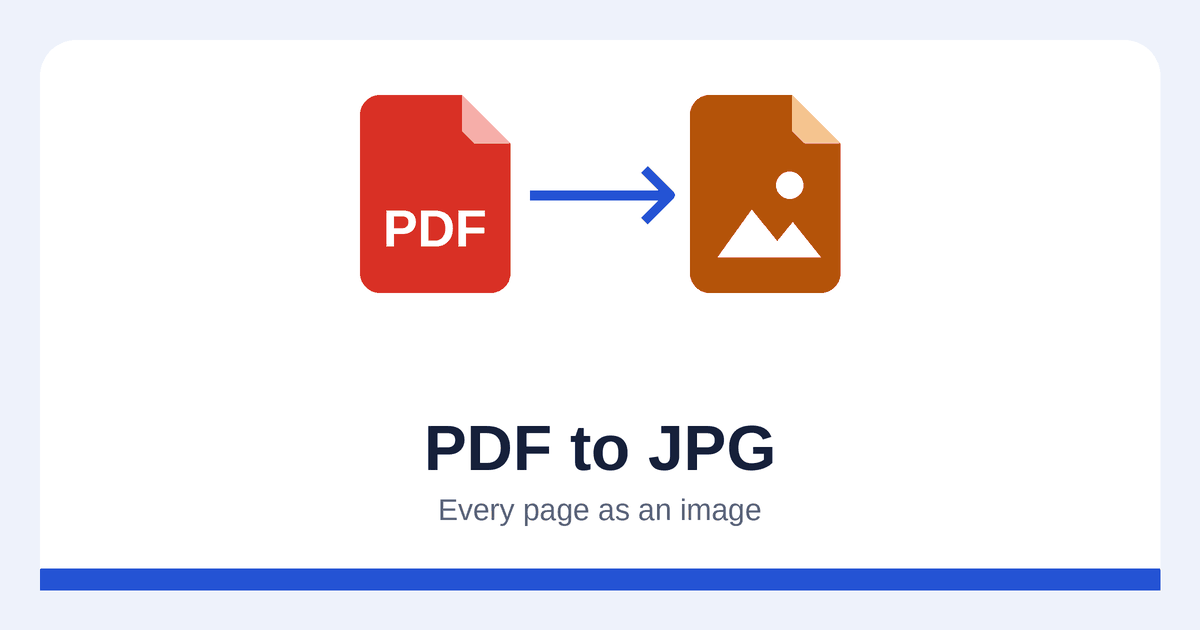
Sometimes you need a page as a picture rather than a document: to post it on social media, insert it into a presentation, attach it to a form that only accepts images, or show a preview on a website. Converting PDF to JPG turns each page into an image you can use anywhere.
This guide explains how to use the PDF to JPG converter and how to choose the right quality settings.
Step by step
- Open the PDF to JPG converter.
- Choose your PDF or drag it into the upload box. One PDF is converted at a time.
- Pick an image quality (resolution) and a JPG compression level – or keep the defaults.
- Press convert and download the result.
Every page of the PDF is converted. The images are numbered in page order and delivered together in a single ZIP file (unless the site is set up to return a plain JPG for one-page PDFs). On Windows, right-click the ZIP and choose Extract All; on a Mac, double-click it; on most phones, tapping the file opens it.
Choosing the image quality (DPI)
DPI (dots per inch) decides how many pixels each page gets. More pixels means sharper images and larger files.
| Setting | Typical A4 page size | Good for |
|---|---|---|
| Low (72 DPI) | about 600 × 840 px | Thumbnails, quick previews |
| Standard (150 DPI) | about 1240 × 1750 px | Screens, email, websites, presentations |
| High (200 DPI) | about 1650 × 2340 px | Reading small print, zooming in |
| Print (300 DPI) | about 2480 × 3510 px | Printing, archiving |
Standard (150 DPI) is the default and a good balance for most uses. Choose 300 DPI only when you need print quality, because the files are roughly four times larger.
Very large pages, such as posters or technical drawings, are rendered at a lower resolution where necessary so that no image exceeds the size limit.
Choosing the JPG compression
JPG compression trades file size against fine detail:
- Smaller files – fine for previews and web use.
- Balanced (default) – hard to tell apart from the best setting for most pages.
- Best quality – for pages with small text or fine lines where every detail matters.
Scanned PDFs work too
Unlike the PDF to Word and PDF to Excel converters, PDF to JPG doesn't need selectable text. Scanned documents are converted just like any other PDF – each scanned page simply becomes an image.
Good to know
- Transparency – JPG has no transparent areas; they become white.
- Text in the images isn't searchable – a JPG is a picture of the page, not text.
- Need editable text instead? Use the PDF to Word converter for text-based PDFs.
- Going the other way? The JPG to PDF converter turns an image into a PDF page.
Frequently asked questions
Can I convert just one page?
All pages are converted. Open the ZIP and keep the page you need – the files are numbered in page order, so they're easy to find.
Which resolution should I choose for social media?
Standard (150 DPI) produces images large enough for social media and messaging apps. If a platform compresses heavily, you won't gain anything from higher settings.
Why is my image blurry when I zoom in?
The resolution is too low for that level of zoom. Convert again with High (200 DPI) or Print (300 DPI).
Do I need special software to open the ZIP file?
No. Windows, macOS, iOS and Android can all open ZIP files without extra software.
Summary
Converting PDF to JPG takes three steps: upload, choose a resolution and download the ZIP with one image per page. Standard (150 DPI) suits screens and email; 300 DPI is for printing. Scanned PDFs work fine, but the resulting images contain no searchable text.