File Management
How to Compress a PDF to 200 KB, 500 KB or 1 MB
You've filled in the whole application, and then the last step stops you: "Upload your documents. PDF only, maximum 1 MB." Your scanned lease is 4 MB. Your ID is 2.5 MB. The form won't take either.
This happens constantly with job portals, college applications, visa and benefits forms, insurance claims and landlord paperwork. The fix is to compress the PDF, and done properly it takes a few seconds and doesn't make the document any harder to read.
Here's how to do it with Compress PDF, which setting to choose, and what's really going on when a PDF refuses to get smaller.
Why your PDF is so big in the first place
Almost always, it's pictures. When you scan a document or photograph it with your phone, every page is stored as a large, detailed image. A modern phone camera takes 12 megapixel photos, so a single page can easily be 1 to 3 MB before you've even added page two.
Text, on the other hand, takes up almost no room. A 20 page report typed in Word and saved as a PDF is often smaller than one photographed page. That's the key to everything below: compression works wonders on scans and photos, and does very little for PDFs that are mostly text.
How to compress a PDF to a specific size
- Open Compress PDF and drop your PDF into the box, or click Choose file. It works the same on a phone.
- Under Target file size, pick the limit you need: Under 100 KB, Under 200 KB, Under 500 KB, Under 1 MB or Under 2 MB. For any other number, choose Custom… and type it in KB (1 MB is 1024 KB).
- Click Compress PDF.
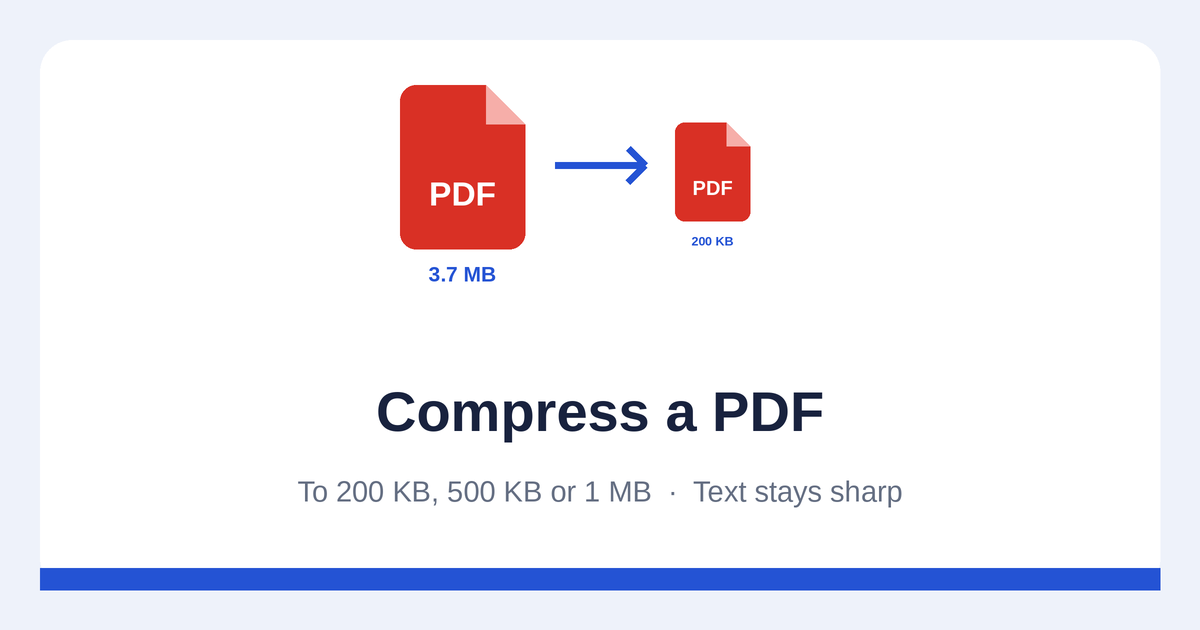
- Download the result. The page shows the old and new size, for example "3.7 MB → 199 KB (95% smaller)".
With a target, you don't have to guess at settings. The tool tries different strengths and keeps the gentlest one that gets under your limit, so you don't lose more quality than the form actually demands.
If you don't have a specific limit and just want a smaller file, leave the target on No target and pick a level instead (more on those in a moment).
What we got in our own test
To give you realistic numbers, we photographed a three page typed document with a phone camera setting (12 megapixels per page) and turned it into a PDF. It came out at 3.7 MB, which is a very typical size for a phone scan. Here's what Compress PDF made of it:
| Setting | Result |
|---|---|
| Recommended | 698 KB |
| Strong | 360 KB |
| Smallest file | 151 KB |
| Target "Under 500 KB" | 442 KB |
| Target "Under 200 KB" | 199 KB |
| Target "Under 100 KB" | 76 KB |
Even the smallest version was perfectly readable on screen and in print. A busier document, like a color brochure full of photos, won't shrink quite as far, and a document that's already been squeezed once won't shrink much at all.
Which level to choose
Recommended is the right place to start. Pictures still look good on screen and on paper, and scans usually drop to a fraction of their original size.
Strong squeezes harder. Text in scanned pages stays crisp enough to read easily, but photos lose some fine detail when you zoom in.
Smallest file is for strict upload limits. Scanned text is still readable, but photos look noticeably softer. Use it when the form leaves you no choice.
Whichever you pick, the real text in a PDF (as opposed to a picture of text) is never touched. If you could select and copy words in the original, you still can, and they stay perfectly sharp at any zoom.
When the PDF won't get any smaller
Sometimes the tool tells you "This PDF is already well compressed, so it could not be made noticeably smaller." That's not an error so much as an honest answer. It usually means one of three things.
The PDF is mostly text. There are no big pictures to shrink. If a text PDF is still too large, it often contains a single oversized image, like a logo or a signature saved at a huge resolution. The best fix is in the original document: make that picture smaller and export the PDF again. In Microsoft Word, File › Save As, choose PDF, and select Minimum size (publishing online) under "Optimize for".
It's already been compressed. Scanning apps and some printers compress PDFs on the way out. Squeezing again wouldn't save much and would only make the pictures worse, so the tool leaves it alone.
It's already under your target. If you pick "Under 1 MB" for a 600 KB file, you'll be told it's already under the limit and you can upload the original as it is.
Tips for hitting a strict limit
Check you need every page. A 12 page bank statement where the form only wants proof of address? Upload page one. Fewer pages is the easiest saving there is.
Scan at a sensible setting next time. For documents, 200 to 300 DPI in grayscale is plenty. Color scans at 600 DPI produce enormous files with no benefit for a form.
Split big jobs. Compress PDF takes files up to 25 MB and 50 pages. Anything larger, split it first and compress the parts.
Don't compress the same file over and over. Each round makes photos a little worse. Go back to the original and choose a stronger setting instead.
Combining files? Merge first, then compress. Use Merge PDF to put everything into one file, then run that file through Compress PDF to get it under the limit in one go.
Checking the size before you upload
On Windows, right click the file and choose Properties, and look at Size rather than "Size on disk". On a Mac, select it in Finder and choose File › Get Info. On an iPhone, touch and hold the file in the Files app and choose Get Info.
One quirk worth knowing: Windows counts 1 KB as 1,024 bytes, while a Mac counts it as 1,000. Our targets use 1,024, so a file made for "Under 200 KB" is at most 204,800 bytes. If your file is right at the edge of a limit, pick a slightly smaller custom target, such as 190 KB, and it'll pass either way.
Quick answers
Will compressing make my PDF blurry?
The text won't change at all. Only images inside the PDF are recompressed. Scanned pages are images, so they do lose some fine detail at the stronger settings, but text in them stays readable.
Is compressing a PDF safe for official documents?
Yes. The content stays exactly the same; only the pictures are stored more efficiently. Just check the result before you submit, especially with the Smallest file setting, to make sure small print like a reference number is still easy to read.
Can I compress a password protected PDF?
Not until the password is removed. Open it in the program that created it, save a copy without the password, and compress that.
What about email size limits?
Gmail lets you attach up to 25 MB, and many work email systems allow less. Compressing with the Recommended level is usually enough to get a scanned document well under that.
The short version
Open Compress PDF, choose the size limit your form asks for, and download the result. Scans and photo PDFs shrink dramatically while the text stays sharp. If a PDF won't get smaller, it's almost certainly mostly text, and the original document is the place to make it lighter.