File Management
How to Merge PDF Files Into One (and Add Photos or Scans)
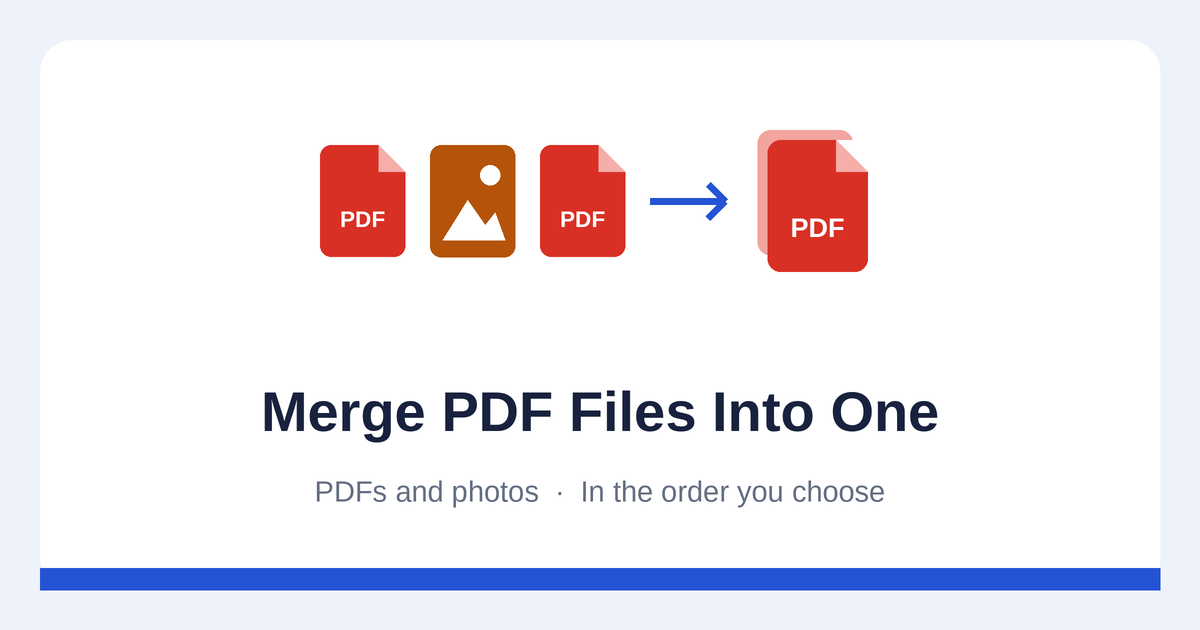
Online forms love a single upload box. "Attach your supporting documents (one PDF)." Meanwhile you have a resume, a cover letter, two reference letters and a photo of your degree certificate, all in separate files.
The answer is to merge them into one PDF. It takes about a minute, and the result is easier for the person on the other end too: one file, in a sensible order, instead of five attachments called things like scan0012.pdf.
Here's how to do it with Merge PDF, including how to slip phone photos in between your PDFs.
How to merge PDFs into one file
- Open Merge PDF and drop all your files into the box, or click Choose files and select them. You can mix PDFs with JPG, PNG and WEBP images.
- Your files appear as a numbered list. The top file comes first in the merged PDF.
- Use the ↑ and ↓ arrows to put them in the right order, and the × to remove anything you added by mistake. Forgot one? Click Add more files.
- Click Merge files and download your single PDF, called merged.pdf.
Before you upload it anywhere, rename it to something that makes sense to the reader, such as "Jane Smith supporting documents.pdf". It looks more professional, and nobody has to guess what's inside.
You can merge up to 20 files at a time, with up to 25 MB and 200 pages in total. That covers almost every application pack.
Adding photos of paper documents
This is where merging gets really useful. Say you have your typed application as a PDF, but the signed declaration only exists on paper. Take a clear photo of it with your phone, add the JPG to the list along with your PDFs, and move it to the right spot. It becomes a page of its own, turned the right way up.
Under Page size for images you can choose how that page is sized:
- Match the PDF pages (the default) gives the photo the same paper size as your first PDF. If your documents are US Letter, the photo page is Letter too; if they're A4, it's A4. The merged file looks tidy and prints evenly.
- A4 or US Letter forces one size for every image.
- Same as image makes the page exactly the shape of the photo, with no white border around it.
PDF pages themselves are never changed. They're copied exactly as they are, so text stays sharp and searchable, and nothing is compressed or redrawn.
For better photos of paper documents, a few habits make a bigger difference than any setting: daylight instead of a flash, the phone held flat above the page, and a plain dark background. Our guide on turning a phone photo into a PDF goes into more detail.
A sensible order for common applications
Reviewers read from the top, so put the document they need first at the top. A few examples that work well:
Job applications: cover letter, resume (or CV), then references, certificates and any portfolio pages.
Visa, residence and benefits applications: the main form or confirmation page, then identity documents, then proof of address, bank statements and anything else in the order the checklist lists them.
Expense claims: the claim form first, then receipts in date order.
School and college paperwork: the application form, then transcripts and certificates, then letters of recommendation.
If the organization gives you a checklist, follow its order exactly. It makes their job easier, and that never hurts.
When the merged file is too big
Scans and phone photos make big files, and upload limits are often small: 2 MB, 5 MB, sometimes even 1 MB. The fix is simple. Merge first, then run the merged PDF through Compress PDF and choose a target such as "Under 2 MB". Doing it in that order means you compress once, at the end, instead of guessing a size for each file. Our guide on compressing a PDF to 200 KB or 1 MB explains the settings.
If something goes wrong
When a file can't be merged, the message tells you which one. For example, "File 3: This file is password-protected" means the third file in your list has a password. Open it in the program that made it, save a copy without the password, and add that copy instead.
A message saying a PDF "appears to be damaged or incomplete" usually means the download was cut short. Download or export that file again.
If you have more than 20 files, merge the first batch, then merge the result with the rest. And if a Word document is part of the pack, turn it into a PDF first with Word to PDF, then add it to the list.
Merging without a website
If you'd rather not upload anything, a Mac can merge PDFs on its own: open the first PDF in Preview, choose View › Thumbnails, then drag the other PDFs into the thumbnail sidebar and choose File › Export as PDF. Windows has no built in way to join existing PDFs, which is why most people use a tool like this one.
Quick answers
Does merging reduce the quality?
No. PDF pages are copied as they are, and images are added at full quality. If you need a smaller file, compress it afterwards.
Are bookmarks and form fields kept?
The pages look exactly the same, but bookmarks and fillable form fields from the original PDFs aren't carried over. If you still need to fill in a form, do that first, save it, and then merge.
Can I change the order after merging?
Not in the merged file itself, but merging is quick. Click Merge more files, add the same files again in the new order and merge once more.
What happens to my files?
They're merged on our own server, not sent to another company. The files you upload are deleted as soon as the merge is done, and the merged PDF is deleted automatically a little later, so download it straight away. You can also remove it at once with Delete file now.
The short version
Drop your PDFs and photos into Merge PDF, put them in order with the arrows, and download one tidy PDF. Leave image pages on "Match the PDF pages" so everything prints the same size, and if the result is too big for the upload form, finish with Compress PDF.