Image Tools
How to Convert JPG to PDF Online
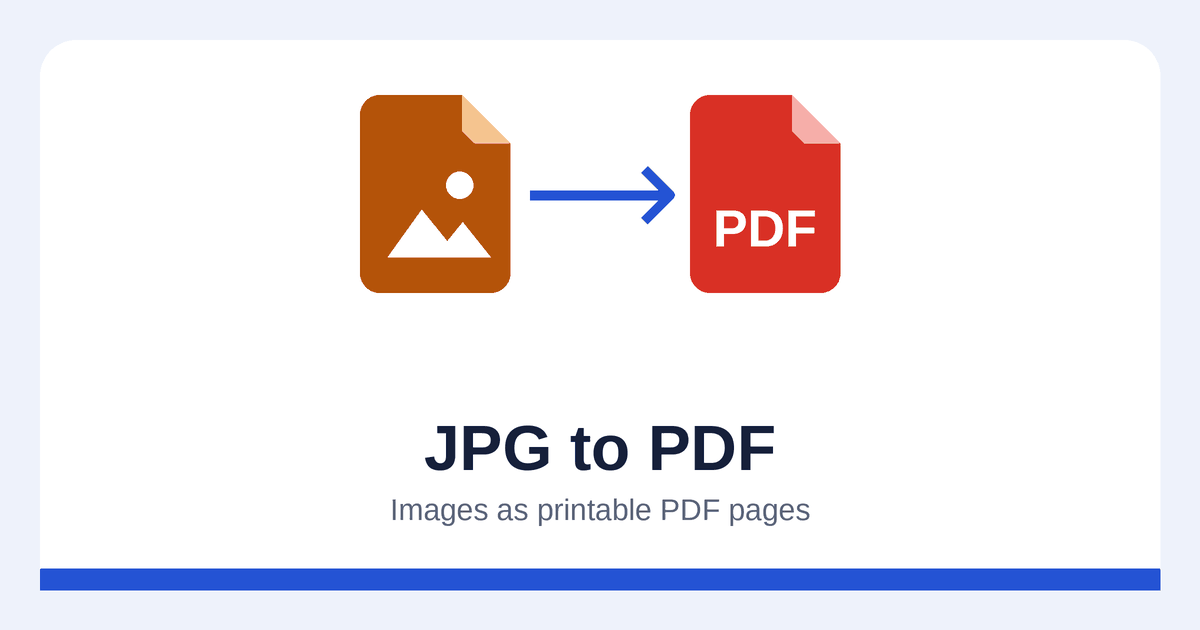
Many forms, portals and email recipients ask for documents "as a PDF", even when what you have is a picture: a signed form you photographed, a certificate, a receipt or a design mock-up. Converting the image to PDF gives you a file that opens and prints predictably everywhere.
This guide shows how to use the JPG to PDF converter and what each option does.
Supported images
- JPG / JPEG – photos and most scans
- PNG – screenshots and graphics, including transparent areas
- WEBP – images saved from many websites
Each conversion turns one image into a one-page PDF.
Step by step
- Open the JPG to PDF converter.
- Choose your image or drag it into the upload box.
- Set the page size, orientation and margin – or keep the defaults.
- Press convert and download your PDF.
The options explained
Page size
- A4 (default) – the standard paper size in most of the world.
- US Letter – the standard in the United States and Canada.
- Same as image – the page is exactly the size of the image, with no white border. Ideal for digital use, such as a design or a screenshot.
Choose A4 or Letter whenever the PDF is likely to be printed or uploaded to a form that expects a normal page.
Orientation
- Automatic (default) picks portrait or landscape to match the shape of the image.
- Portrait or Landscape forces one orientation.
Margin
- No margin, Small (default) or Large. A small margin looks tidy on screen and prevents printers from cutting off the edges of the image.
Image quality
JPG and PNG images are placed into the PDF without being re-compressed, so there is no loss of quality. Two exceptions are re-saved at high quality: WEBP images (a PDF can't contain WEBP directly) and photos that need rotating.
PNG transparency is kept, so a logo or signature with a transparent background still looks right.
Tips for a better PDF
- Crop first. Remove the table, the background and your fingers from the edges of a photo before converting – any phone's photo editor can do this.
- Check the resolution. For printing, an image of around 2000 pixels on the long side gives a sharp A4 page. Very small images will look soft when they fill a page.
- Reduce huge images. A 50-megapixel photo makes an unnecessarily large PDF. The Image Resizer can shrink it first.
- Photographing a document with your phone? See how to turn a phone photo of a document into a PDF for lighting and angle tips.
Frequently asked questions
Can I put several images into one PDF?
Not with this tool – each conversion creates a PDF from one image. Convert each image separately.
Will the text in my image become searchable?
No. The image is placed in the PDF as a picture. Making the text searchable requires OCR, which this tool doesn't provide.
Why does my photo appear rotated correctly in the PDF but sideways on my computer?
Phones often store photos sideways and add a note saying how to rotate them. The converter reads that note and turns the image the right way up; some older programs ignore it.
Summary
To convert JPG to PDF, upload a JPG, PNG or WEBP image, choose A4, Letter or the image's own size, and download a one-page PDF. JPG and PNG images keep their full quality, transparency is preserved and phone photos are rotated correctly.